


File conversion is usually a tiny job with a surprisingly long route. You notice the format is wrong while attaching a file, stop what you are doing, find an app that can open it, export a copy, then go looking for the result. I built Convert into Droppy's file path so that detour can happen where the file is already waiting.
Start from the Shelf or Basket
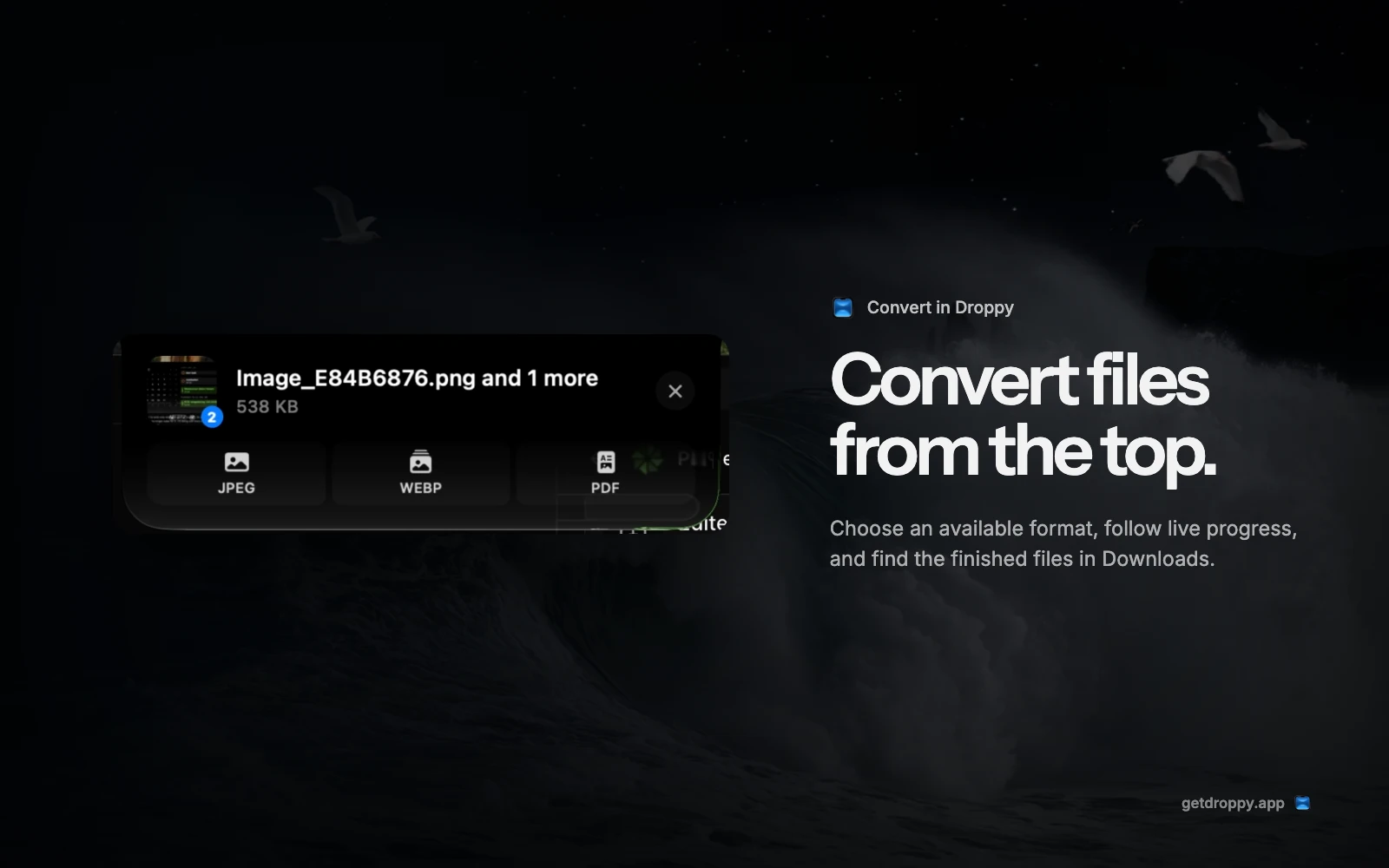
The Shelf is the quick route. Drag a file towards the top of the screen and the Quick Actions surface appears beside the Drop target. Move onto Convert to start with the file in your drag. If files are already sitting in the Shelf, the same action can work on that held selection.
The Basket is better when the selection has a life of its own. I use it when several screenshots, exports, or document attachments belong together but I am not ready to send them yet. Convert works there too, so a temporary project pile does not have to go back through Finder before it can change format.
Both entrances lead to the same format chooser and progress surface. That matters because there should not be a Shelf version of conversion and a different Basket version with different rules. The source changes. The conversion path does not.
Make Convert one of your Quick Actions
Drop is the fixed first tile in Quick Actions. It is the safe default that simply places a file into the current surface. After it, you can keep one, two, or three secondary actions, which makes the complete row between two and four tiles wide.
The available secondary actions are AirDrop, Messages, Mail, iCloud Drive, Droppy Cloud, and Convert. In Settings, the Quick Actions editor lets you add, remove, or swap those tiles. If you send files through Messages all day, keep it. If you never use Mail from the Shelf, take it out. Convert only needs to occupy that small row when it is genuinely part of your work.
- Drop
- Always present. Keeps the file in the Shelf or Basket without sending or changing it.
- Convert
- Shows output choices that are supported for the current file or shared by the whole selection.
- Native sharing
- AirDrop, Messages, and Mail hand the selected files to the matching macOS service.
- Cloud destinations
- iCloud Drive and Droppy Cloud are separate share actions. They are not the Convert destination.
Why the output choices change with the file
A converter that shows every possible format all the time makes the menu look capable, then fails after you choose something that does not fit the source. Droppy takes the opposite approach. It inspects the selected file and only offers destinations appropriate to it.
That is why an image can present a different row from a document, and why two different files selected together can narrow the row further. For a multi-file conversion, Droppy finds the formats supported by every file in the selection. If there is no shared destination, it says that instead of starting a job it cannot complete consistently.
This also means I do not describe Convert as supporting every format. JPEG, PNG, PDF, or another choice can appear when the source and the Mac support that route. A WebP choice is conditional, so it should not be treated as a permanent promise on every setup. Some document-to-PDF routes also depend on the app that owns the document and the Automation access macOS asks you to approve.
A single photo gets the widest row. Convert can hand it to any of these.
A Word document narrows to a single reliable route, and only when its owning app is present.
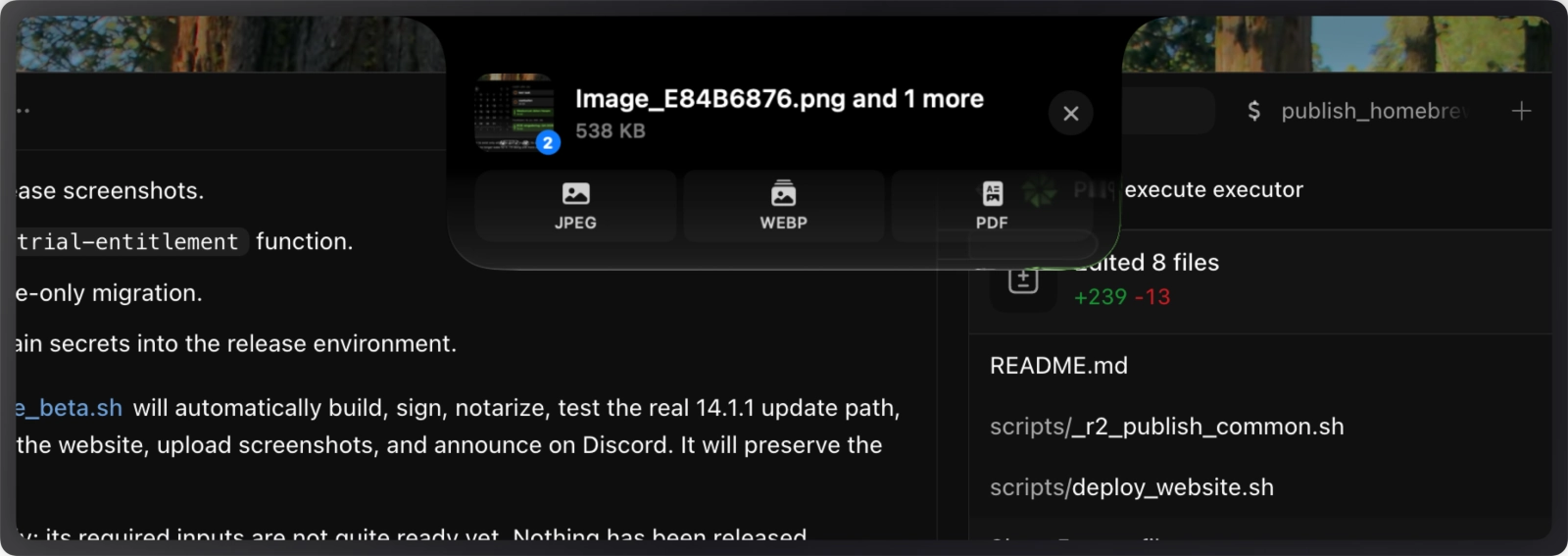
Select two images together and the row narrows to the formats every file shares.
Tap a file to see the formats Convert offers for that selection. The row only ever shows destinations the source actually supports.
Prepare a batch around one shared result
A useful batch is a group of files that should all leave in the same format. Several screenshots for a web upload are a clear set. A presentation, a photo, and a text document may not be. If the chooser becomes unexpectedly narrow, check whether one item has different conversion needs and move it into a separate pass.
This is also a good moment to inspect filenames. Conversion keeps the source name and changes the extension, so descriptive source names produce descriptive results. Rename an opaque download before the batch if the final copy needs to make sense outside your Mac. Droppy protects collisions in Downloads, but a unique suffix cannot explain what an ambiguous file contains.
The sources stay in their original locations. That lets you compare the converted copies before removing anything, and it keeps a failed job from becoming destructive. Open a representative result, confirm that its dimensions, pages, or visual content fit the destination, then continue with the handoff. Format compatibility and content correctness are separate checks.
Follow a multi-file conversion without guessing
One file is simple enough: choose a format and wait for the result. A batch needs clearer state. Droppy processes the selection file by file, shows which filename it is working on, and updates progress as each file completes. That is completion progress across the set, not a made-up byte estimate for the current file.
If a later file fails, the copies already saved are not hidden. The result surface can reveal what made it to Downloads, and the remaining work can be retried. This is important for a batch because a failure near the end should not make the successful beginning feel as if it never happened.
The compact surface is also deliberate. Conversion often starts in the middle of another task, so the status belongs at the top of the screen rather than in a modal window that covers the document, message, or upload form you were preparing.
Document exports can involve another Mac app
An image conversion can often be handled directly. A document-to-PDF route may need the application that understands the document. Word, Excel, PowerPoint, and iWork files can depend on their corresponding installed app, while OpenDocument conversion depends on LibreOffice. Droppy validates the route before presenting it, but the required owner still has to exist on the Mac.
macOS may also ask for Automation permission when Droppy needs to tell that application to export. That permission is a system boundary, not an optional speed boost. Approve it only if you want that document route. If it is denied, the honest fix is to review Automation access in System Settings or use the owning app's own Export command.
Results always have a predictable home
Every completed copy goes to Downloads. Droppy does not overwrite the source in place, and it does not ask for a new destination on every file. If a file with the same name already exists, the new result gets a unique Finder-style name instead of replacing it.
Downloads is not always the final home, but it is a reliable handoff point. You can reveal the results in Finder, attach them, move them into the project, or put them back in the Basket for the next step. The useful part is knowing where to look before the conversion starts.
| Situation | Why Convert helps | What to expect |
|---|---|---|
| An upload rejects the current image | The format change happens from the same file surface used to stage the upload. | An available image destination appears only when that source supports it. |
| Several assets need one output type | The whole selection can enter one batch. | Only formats shared by every selected file are shown. |
| A document needs a PDF handoff | You can start the export without rebuilding the selection elsewhere. | The route may require the document's app and macOS Automation permission. |
| You are not ready to file the results | The Basket can hold the inputs while Downloads receives the copies. | Sources remain where they were and results get unique names. |
Where Convert stops
Convert is not a promise that any file can become any other file. It does not expose an in-place overwrite switch, it does not let each file in one batch pick a different destination, and it does not turn Droppy Cloud into a conversion service. The cloud actions share files. Convert changes supported formats and saves the copies to Downloads.
For a one-off image, Finder or Preview can still be the right tool. The HEIC to JPG guide explains both built-in paths. Droppy becomes useful when the same conversion sits beside the Shelf and Basket workflows you already use, especially when the files are mid-drag or already gathered as a set.