


There is a specific moment when dragging files on a Mac stops feeling direct and starts feeling ridiculous. You have already picked up the file, but the destination is not ready. The right Finder folder is buried under three windows. The email draft is on another Space. The upload form has not finished loading. You are still holding the pointer down, steering around the screen, and hoping you do not let go over the wrong thing.
The problem is not drag and drop itself. The problem is that macOS expects every drag to have a finished destination before it starts. Real work is rarely that tidy. We find things first, decide where they belong second, and often collect several pieces from different places before delivering any of them.
Droppy's Basket is a retained file group for that unfinished middle. Start dragging a file, jiggle the pointer, and Droppy's actions appear beside the drag. Keep the file and it remains in a Basket until you take it out or clear the group. The drag is over, your hand is free, and the file waits while you open the destination or collect the rest of the set.
The jiggle is a request for help
I wanted the Basket to appear at the moment the Mac becomes inconvenient, without leaving a permanent target floating over every app. A quick jiggle during a file drag is a deliberate gesture that does not conflict with normal pointer movement. Droppy sees it, brings in the Basket, and gives the current drag somewhere safe to land.
That matters most on a large display or a busy desktop. A fixed shelf at the top of the screen is easy to learn, but reaching it can still be a long trip when the pointer is near the bottom corner. The Basket comes to the work instead. The sequence below uses one real screen recording in Finder's Recents view.
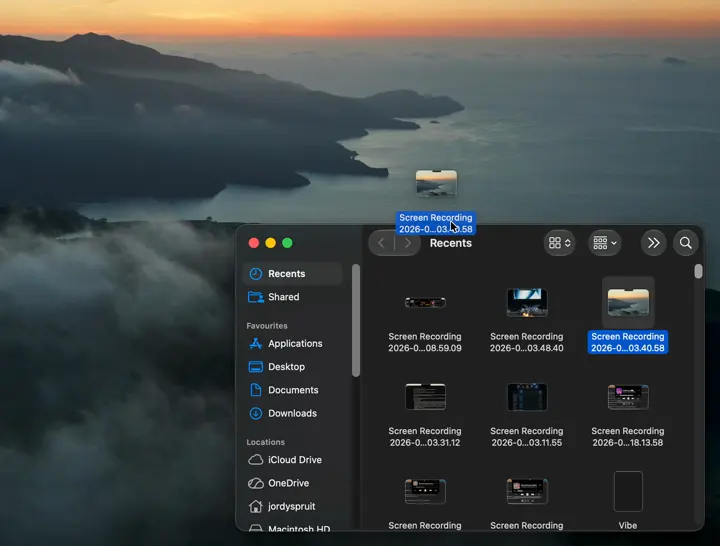
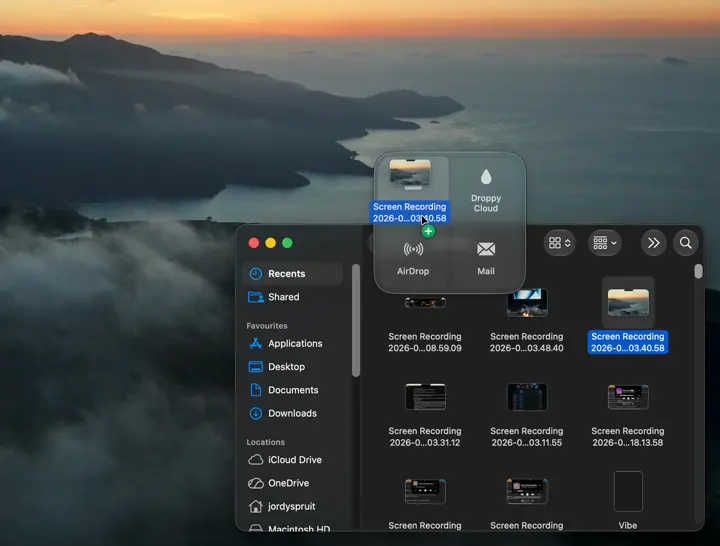
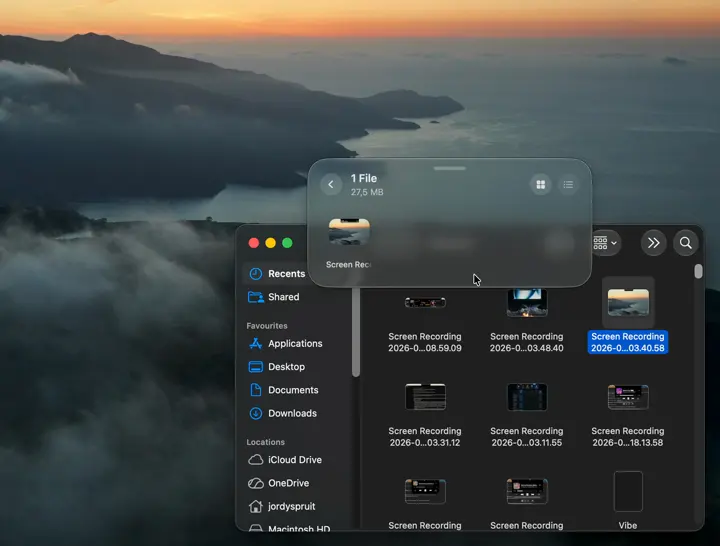
Nothing abstract is happening in those three states. A file leaves Finder, Droppy reveals the available destinations, and choosing the retained-file target leaves one file in a visible Basket. Instead of committing to the final folder in one uninterrupted movement, you can navigate normally and pick the file up from the Basket later. If the destination is a new format rather than a new place, the Droppy file converter guide covers that action from selection to saved result.
Basket and Shelf solve related, different problems
Droppy also has a Shelf at the top of the display. Both surfaces can hold files, but I use them differently.
The Shelf is quick staging at the top of the display. You know where it is before a drag begins, and it is good for files you intend to hand off soon while working near Droppy's other controls.
The Basket is a retained group. It is better when the pointer is far from the top, the destination is still unknown, or a set needs to remain together beyond one quick handoff. Multiple Basket states are independent in the current app, including their items and selections, so separate groups do not have to collapse into one pile.
You do not have to choose one forever. A normal day can use the Shelf for a project you keep returning to and a Basket for the one-off delivery happening right now.
Catch files mid-drag and gather a set from several places before delivering any of it.
When the destination is a new format rather than a new place, a held file can hand off to Droppy's file converter.
Turn attachment gathering into a visible checklist instead of a memory test.
- Park each attachment as you remember it.
- Write the message without switching apps.
- Drag the complete set into the draft before sending.
Keep a retained group together beyond one quick handoff, or pull only task files out of Downloads.
The same Basket serves each of these; the workflows below walk through them one at a time.
Workflow one: collect screenshots before you name them
macOS screenshots often begin as a thumbnail in the corner, which is convenient until you need several. Suppose you are documenting a bug. You capture the empty state, the action that triggers it, and the result. Filing each image immediately interrupts the test. Leaving all three on the desktop creates a cleanup job with meaningless timestamp names.
Drag each screenshot thumbnail into a Basket as you capture it. Finish reproducing the bug while the exact sequence is still in your head. Then open the project folder, take the group out, and rename or arrange it together. The Basket keeps the evidence visible without forcing you to decide its final folder between screenshots.
The same pattern works for reference images, exported mockups, and assets pulled from different browser tabs. Collect first. Organize once.
Workflow two: build a project asset pile
A project rarely gets its assets from one folder. The logo is in Brand, the latest screenshot is in Downloads, the approved copy is a PDF from Mail, and the icon is still sitting in an export folder. Moving them one at a time means repeatedly navigating back to the destination or keeping a wide fan of Finder windows open.
Use a Basket as the temporary project pile. Find an asset, drop it in, and continue searching from wherever you are. When the set is complete, open the destination once and deliver the group. If one item turns out to be wrong, remove or replace it before anything reaches the final folder.
This is especially useful when the destination is not a folder at all. A CMS upload field, a design tool, a support ticket, and a chat compose box can all be the final drop. The Basket lets the collection happen independently of whatever app will receive it.
Workflow three: attachments without the window dance
Email attachments are the classic unfinished-destination problem. You start writing, remember the first file, switch to Finder, attach it, return to the draft, remember the second file, and repeat. Or you begin dragging an attachment before the compose window is visible and spend the rest of the gesture trying to expose it.
A Basket separates composing from gathering. Park the attachments as they occur to you. Write the message. Before sending, drag the complete set into the draft and verify it against what the message promises. It is a small change, but it turns attachment gathering into a visible checklist instead of a memory test.
The reverse direction is useful too. When somebody sends a group of files, place the useful attachments in a Basket instead of throwing every one into Downloads. Read the message, decide which project they belong to, then file them deliberately.
Workflow four: rescue Downloads without sorting everything
Downloads becomes a holding area because sorting every file at the moment it arrives is too expensive. The Basket gives you a lighter pass. Open Downloads, pull out only the files connected to the task in front of you, and place them together. You do not need to clean the entire folder to make progress on one project.
This works well at the end of a research session. Gather the PDFs, images, and exported data that actually survived the session, then move the group into its project home. The abandoned installers and duplicates can wait for a separate cleanup.
Keep several file groups separate
One retained group is enough until two jobs overlap. Droppy supports multiple Baskets and a Basket Switcher, so the screen recording shown above does not have to mix with a second group of images. With one Basket active, another jiggle can open a second. With several, the switcher lets you choose the group you mean.
I find this most useful when sorting a broad source folder into a few destinations. Make one Basket per destination, place files into the right group as you inspect them, then deliver each group in turn. It is not a replacement for Finder tags or a durable folder structure. It is temporary separation while the decision is happening.
Keep the number modest. If you have ten Baskets open for a week, the temporary layer has become another filing system, and Finder is the better tool.
Your files stay part of your local Mac workflow
The Basket is not a cloud inbox. Droppy processes file data on your device, and putting something in a Basket does not upload it to Droppy Cloud. Cloud sharing is a separate action you choose when you actually want a private link. That separation is important: temporary organization should not quietly become network transfer.
The practical caution is the same as with any local file workflow. A Basket is a working surface, not a backup. Do not treat it as the only home for an irreplaceable file. Keep originals in normal storage, let Time Machine or your backup system protect them, and use the Basket for movement and grouping.
Who the Basket fits, and who can skip it
The Basket earns its place if you drag across Spaces, assemble batches from several sources, work on a large display, or regularly begin a drag before its destination is ready. It is also useful if you prefer a clean desktop and do not want temporary project piles living there.
If nearly every drag is from one Finder window to the folder beside it, the Basket will be unnecessary ceremony. Use the Mac's normal drag and drop. If you want a fixed destination rather than a summoned one, use the Shelf. And if all you need is one focused shelf utility, the broader Droppy feature set may be more than you want.
The honest goal is not to route every file through Droppy. It is to notice the stressful drags, the ones where you are holding a file while arranging the rest of the computer, and give those drags a place to stop.