


Someone asks where you are. The answer is four words long. You leave the document, wait for a messaging app to wake up, find the conversation, type the four words, then spend the next two minutes reading everything else that arrived while you were in there. The reply cost nothing. The trip cost the rest of the morning.
What a macOS banner actually lets you do
Notification banners on macOS can carry actions, and Messages uses that. Hover a Messages banner, click Reply, and a field appears in the banner itself. It is genuinely good, and it is the reason people assume every app can do it.
They cannot. The reply action is something each app declares for its own notifications, and almost no messaging app on the Mac declares it. That includes the ones most people use all day. So you get a banner that tells you a message arrived and gives you exactly one useful gesture, which is clicking it to open the app.
The other limit is time. A banner is on screen for a few seconds, then it is gone into Notification Centre, and the reply field goes with it. If you were mid sentence when it appeared, the window to answer has already closed by the time you look up. Notification Centre keeps the message but not the ability to answer it.
If your banners are not appearing at all, that is a different problem with a different fix, and the guide to Mac notifications that never show up is the right starting point. This article assumes they arrive and you simply cannot answer them.
The cost of opening the app to say on my way
The real expense is not the seconds. It is the context switch. Opening a messaging app puts you in a room designed to keep you there: unread counts, other threads, a sidebar of everything you have not dealt with. You went in to send four words and came out having read eleven conversations.
It also breaks whatever you were doing. Full screen work is worst, because answering a message means leaving the Space, and coming back does not restore where your attention was. This is the same cost that a Focus mode is trying to protect you from, and it is why silencing everything often backfires. You are not trying to see fewer messages. You are trying to answer the quick ones without paying the full price.
Replying from the notch banner
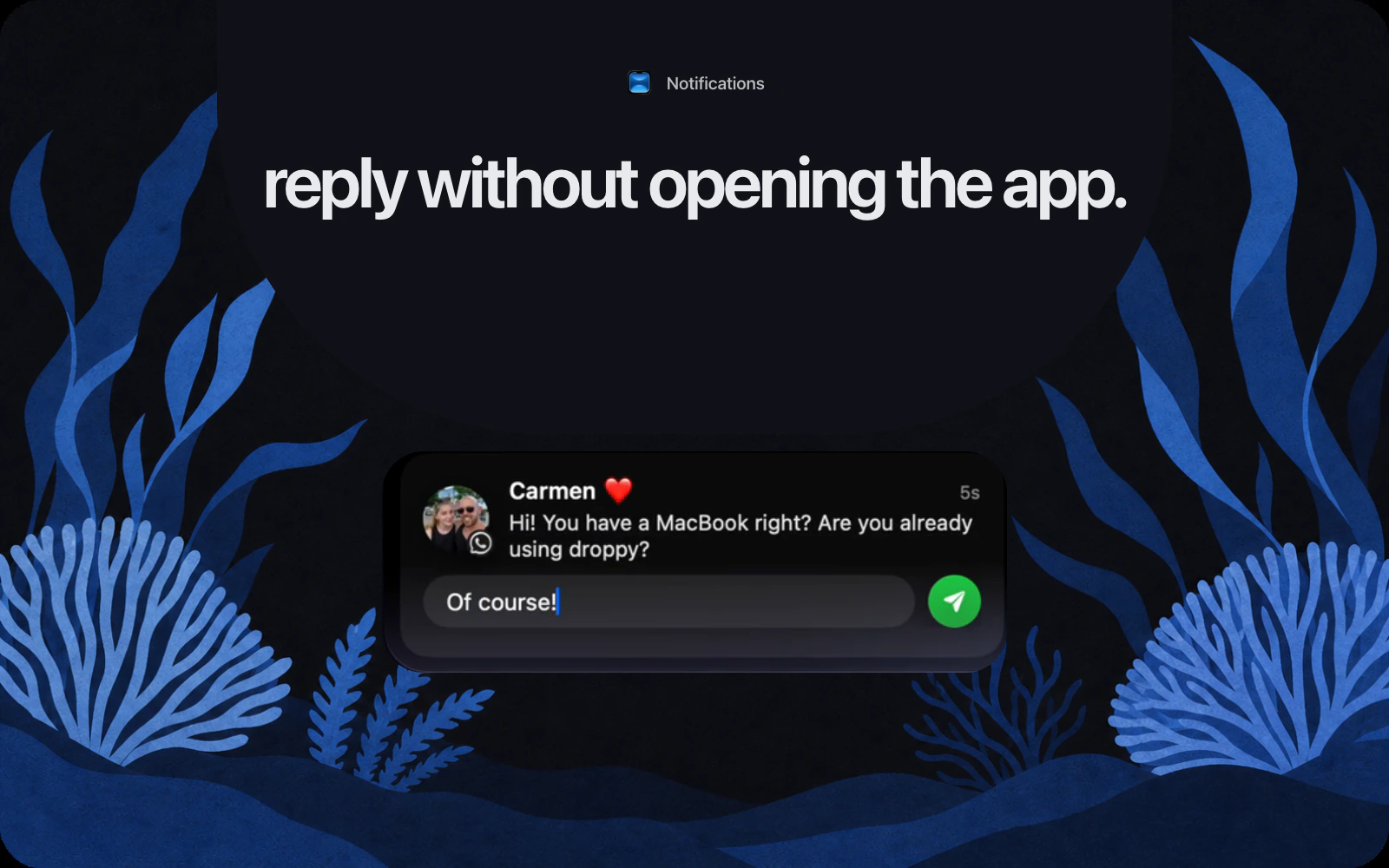
Droppy shows notifications as a banner under the notch. When the message came from a service it can answer, hovering that banner reveals a reply field in place, with a send button next to it. Type, press send, keep working. The window you were in never loses focus.
Three services can be answered this way, and it is worth being precise about which. iMessage, WhatsApp, and Telegram. Slack, Discord, and Mail notifications are shown, and they are treated as messaging apps so a Focus filter does not eat them, but there is no reply field on them.
iMessage works differently from the other two, because Messages is already on your Mac. Droppy reads your local Messages database to work out which conversation the banner belongs to, then asks Messages to send the reply. That needs Full Disk Access to read, and Automation access to send, and it will ask for both the first time. If the message cannot be matched to exactly one conversation, it refuses to send rather than guessing, which is the correct behaviour and occasionally an annoying one.
The Notifications widget as an inbox you can answer
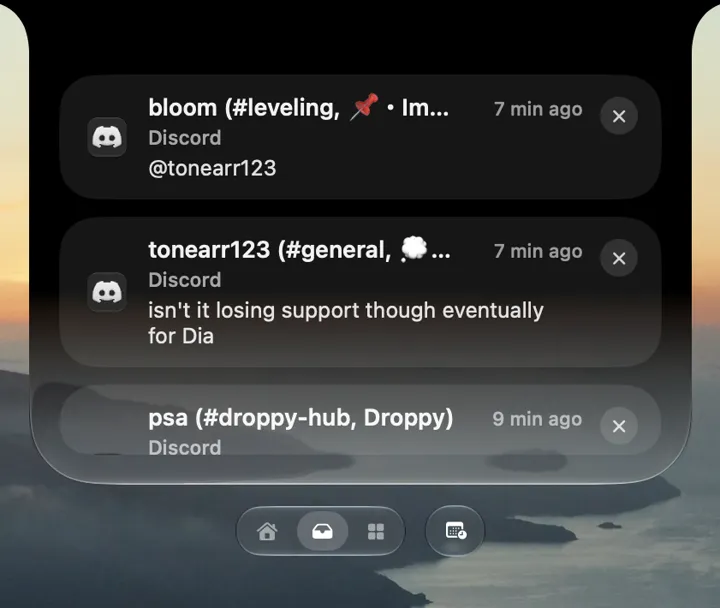
The banner solves the message you saw. The widget solves the one you missed. Notifications is one of the widgets you can put on the expanded Shelf, and it keeps a list of what has arrived recently.
Rows from the three repliable services carry a reply button. Click it and a composer opens inside that row, addressed to that conversation. This matters more than the banner does, because it removes the deadline. A message from ten minutes ago is just as answerable as one from ten seconds ago.

The widget send path is deliberately kept separate from the live banner, so a new message arriving while you are typing cannot redirect what you are writing to the wrong person. There is no confirmation text when it works. The send button flies off and the reply appears on the row, which is enough.
Connecting WhatsApp and Telegram, once
Neither WhatsApp nor Telegram exposes anything a Mac app can talk to, so replies go through their own web clients. Droppy keeps a signed in web session in the background and drives it: open the conversation, type the text, press send. That is the honest description, and it is worth understanding before you decide whether you want it.
What it means in practice: the session is yours, it lives in Droppy's own website storage, and it persists across restarts so you scan the code once rather than every morning. Droppy never sees a password, because the login is a QR scan handled by the web client. What it also means is that it is a scraped web page. If a service changes its markup, sending breaks until it is fixed, and a chat far down a long list can be missed because the page only keeps the visible rows in the document.
Telegram is set up in Droppy's settings, under Droplets, on the Notifications Droplet page. Turn on Reply to Telegram, then use the Telegram Web row: click Connect, a window opens with a QR code, and you scan it with your phone. The row then tells you it is connected. Disconnect on the same row wipes the session and every cached thread, and the next connection needs a fresh scan. WhatsApp connects the same way.
What this does not do
Text only. Both composers are a single line field. No attachments, no images, no voice notes, no emoji picker. It is built for the four word answer, not for a conversation.
It does not replace the native apps, and it actively steps aside for them. If the Telegram or WhatsApp Mac app is running, Droppy suppresses its own banner for that service so you are not notified twice. You get the native notification instead, which is the correct outcome and also not repliable. If you want to answer from the notch, do not run the native app alongside it.
Muted chats never produce a banner. Nothing is marked as read, no typing indicator is sent, and no presence information is used, on purpose. Answering from Droppy is not visible to the other person as anything other than a message arriving.
And it is a Droplet, which means it is optional. If you never want a message surfaced at the top of your screen, do not install Notifications and none of this exists. If you do, it sits alongside the other things Droppy can put up there, which the guide to Live Activities on the Mac covers, and it shares the Shelf with the file and widget layout described in the Shelf guide.

The test for whether this is worth setting up is simple. Count how many times a day you open a messaging app, send one line, and close it again. If that number is small, the native banner is fine. If it is not, the fix is not to see fewer messages. It is to stop leaving the room to answer them.