


Closing the lid is a sleep command. Most of the time that is the right behaviour, and it is the reason a MacBook can sit in a bag for a day and still have charge. It stops being the right behaviour the moment you close the lid on a Mac that is still working. An export with twenty minutes left, a backup over the network, a large upload, a build. You shut the lid out of habit and the work stops with it.
What macOS does when the lid closes
There is a sensor in the hinge. When it reports the lid as shut, the power management daemon starts a normal sleep transition: the display turns off, running work is suspended, and the machine drops into a low power state it can resume from. Nothing about that is a bug. It is the same path used by the sleep timer and by the Sleep item in the Apple menu, just triggered by hardware instead of a timer.
Two things follow from that. First, sleep is a system state, not a per app setting, so an app cannot simply ask to keep running through it. It has to ask the system not to enter the state at all. Second, the lid case is treated differently from an idle case. An app can tell macOS the machine is busy and should not idle sleep, and macOS will honour that. Close the lid and the same request is ignored, because a closed lid is read as intent rather than idleness.
That distinction is the whole story. Every trick in this article exists because the lid path deliberately overrules the polite way of asking.
The display and power conditions that keep it running
There is one supported exception, and it is the one Apple documents. If the Mac is connected to power and driving an external display, closing the lid moves everything to that display instead of sleeping. Apple's guidance for connecting a display to your Mac is explicit that a laptop used with the lid closed should be on power with an external keyboard and pointing device available, and the MacBook Pro guide says the same for its own models.
Read the conditions carefully, because each one fails in a familiar way. On power means real power, not a hub that negotiates a trickle. An external display means an active display, so a monitor that has gone into its own standby can drop the Mac with it. An external keyboard or pointing device means the machine has an input path once the built in one is folded away, and a Bluetooth keyboard that has fallen asleep is not one.
When people say clamshell mode is unreliable, this is usually where it broke. The Mac did what it was told. One of the three conditions quietly stopped being true. If your display goes dark on the desk rather than on the Mac, Apple's notes on a dark or low resolution external display are the right first stop.
None of this helps if there is no monitor. A MacBook alone on a desk, finishing an export before you leave, has no supported way to keep going with the lid down. That is where the workarounds start.
The Terminal flag and why people get stuck on it
Search for this problem and within two results you will find sudo pmset -a disablesleep 1. It works. It is also a system wide setting written to power management state, it survives a reboot, and it is not in the manual. Run man pmset on your own Mac and search for disablesleep: it is not there. You are setting something real and undocumented, with your admin password, on the recommendation of a forum post.
The trap is not the command. The trap is that the command has no presence. Once it is set there is nothing on screen that tells you the machine will never sleep again. No menu bar item, no badge, no reminder. The matching disablesleep 0 is the only way back, and by the time it matters you have closed that Terminal window and forgotten the flag exists.
The result is a MacBook that runs warm in a bag, arrives at 4 percent, and gets blamed on battery health. The battery is fine. The lid is not doing anything any more. If you have ever run that command and cannot remember undoing it, run pmset -g and look at the SleepDisabled line before you read further.
Dummy plugs and always-on apps
A dummy plug is a small adapter that presents itself as a connected display so the Mac believes the clamshell conditions are met. It is honest about what it does and it needs no admin password. It also occupies a port, has to travel with the machine, and makes the Mac think there is a screen attached, which can move windows somewhere you cannot see them. For a fixed desk it is a reasonable answer. For a laptop that moves, it is one more thing to lose.
Stay awake apps are the other half of the category, and they are honest too, as long as you read what they claim. Most of them ask macOS not to idle sleep, which is exactly the polite request the lid path ignores. That is why a stay awake app can hold a machine up all afternoon and still let it drop the second the lid closes. It is not broken. It is doing the documented thing, and the documented thing does not cover the lid.
So there are really two features hiding under one name. Keeping a Mac from idling is easy and safe. Keeping a Mac awake with the lid shut requires touching that undocumented setting, and the only question worth asking of any tool that offers it is what happens when the tool stops running.
High Alert, a lid override you can see and undo
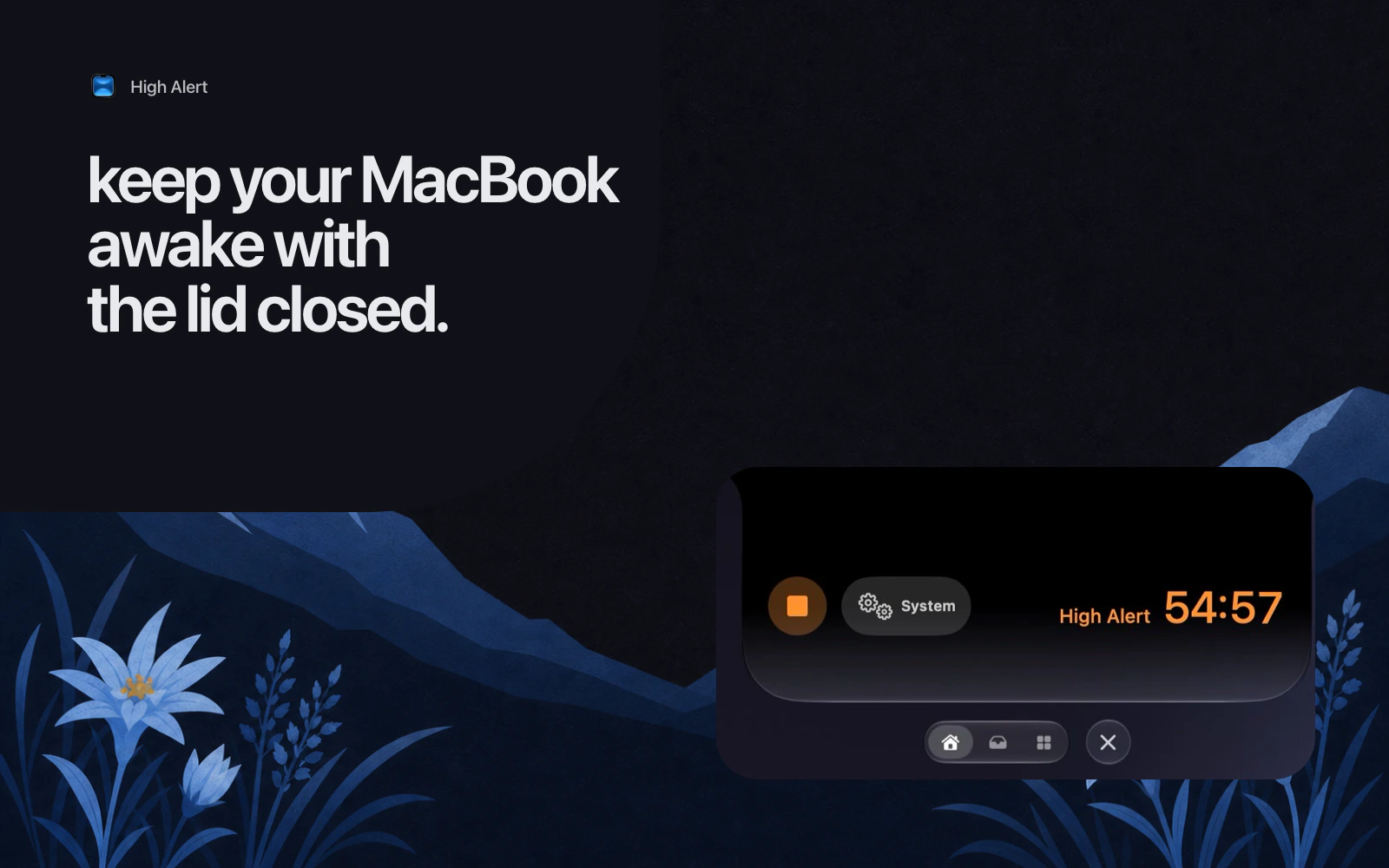
High Alert is a free community Droplet in Droppy, built by Valetivivek, and it splits those two jobs into modes you pick on purpose. Display keeps the screen and the Mac awake. System Only lets the screen turn off while the machine keeps working. Lid Closed is the one this article is about, and it is the only one that touches the protected setting.

Lid Closed mode does use the same underlying flag. There is no secret third way, and pretending otherwise would be dishonest. What changes is the bookkeeping around it. Droppy asks for administrator approval once, and the permission it installs is scoped to that single setting and nothing else. From then on switching the mode is instant and silent.
More usefully, it is visible. A countdown ring sits at the top of the display for as long as the override is active, with the time left next to it. You give it a duration when you start it, from ten minutes up to several hours, or leave it running until you stop it. Something that changes how your Mac sleeps should be impossible to forget, and a ring above the screen is harder to ignore than a Terminal window you closed.
Undoing it is the part that matters most. Stopping High Alert restores normal lid sleep. So does the timer running out, quitting Droppy, or removing the Droplet. If Droppy is force quit or crashes while the override is on, a small watchdog process notices the app is gone and puts the setting back itself. And if the flag was already on before Droppy ever ran, Droppy leaves it alone rather than claiming a setting it did not set.

A setup that survives a flat battery
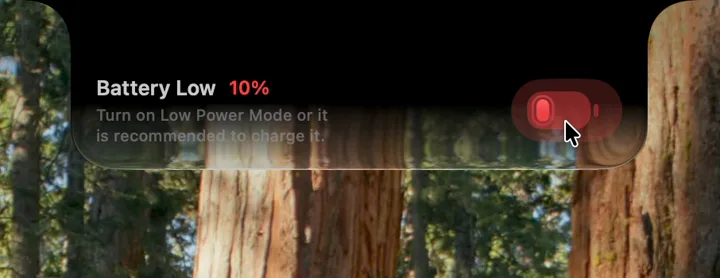
An override that cannot sleep is dangerous for exactly one reason: a Mac that will not sleep will happily run itself down to nothing. So Lid Closed mode has a floor. If the Mac is on battery and drops to 5 percent, or Low Power Mode turns on, the override stops and normal lid sleep comes back. It does not wait for you to notice and it does not turn itself back on afterwards, which is the behaviour you want from a safety net.
Put together, a sane setup looks like this. At a desk with a monitor, use the supported path: power, display, external input, lid down, nothing installed. Away from the desk, use a lid override with a timer that matches the job rather than one that runs until you remember. Keep it plugged in if the job is long. And whichever route you take, know how to check the state, because the failure mode is always a machine that quietly stopped sleeping.
The habit worth keeping is smaller than the tooling. Before you close the lid, decide whether you want the Mac to stop. If you do, close it and let macOS do its job. If you do not, turn something on that you can see, and that you can turn off. A guide to MacBook battery health covers what running warm actually costs, and if you want your Mac to feel quicker rather than just stay awake, making your Mac feel fast again is the more useful place to spend an afternoon.
Sources
pmset -g.