


A utility app can become a junk drawer very quickly. Add one timer, one window tool, one media integration, one file converter, and one meeting helper. Each feature sounds small in isolation. Together they create a settings maze, background work, permissions you may not understand, and a product whose core job is hard to describe.
Droplets are how I keep that pressure out of Droppy's core. A Droplet is an optional, focused tool that you enable because it fits your Mac. The Shelf, Basket, clipboard, media surface, and main Droppy shell stay coherent. Extra capabilities arrive as modules you can leave off.
This is not a marketplace of mystery plug-ins. Droplets are part of Droppy, use its surfaces, and can be toggled independently. The separation is about choice and focus: your Mac should run the tools you chose, not every idea the app has collected.
Optional means optional in the interface too
Turning a Droplet off should remove more than its settings toggle. It should stop occupying the widget picker, stop asking for attention, and avoid requesting permissions for a workflow you do not use. Some tools need access to the microphone, notifications, meetings, or Finder. Droppy requests those permissions when the feature needs them rather than making every new user approve everything up front.
The practical rule is simple: enable a Droplet when you can name the recurring interruption it removes. Leave it off when its description merely sounds interesting.
This also keeps setup reversible. A tool can be useful for one season of work and unnecessary in the next. Remove the Droplet from the active setup and the shared Shelf returns to the smaller set you still use. You do not have to redesign the whole app around a workflow that ended.
Delivery tools for concrete limits: shrink a file, bridge from Finder, or send a private link.
Playback controls and timed lyrics at the top of the screen for people who listen all day.
Window placement, meeting controls, a notch camera preview, and quick shell commands.
Time, attention, and status: a timer, a stay-awake switch, notch notifications, and hands-free transcription.
Enable a category's Droplet when you can name the interruption it removes, and leave the rest off.
Window and meeting tools
Window Snap handles window placement with shortcuts or dragging. It is useful if you repeatedly arrange the same halves, thirds, or corners and want that action attached to Droppy rather than another permanent utility.
Meetings exposes controls for Zoom, Microsoft Teams, and Google Meet. The point is not to replace those apps. It is to keep the frequent meeting actions available when the meeting window is behind the document or screen you are presenting.
Camera adds a live camera preview at the notch. That is a focused pre-call check or framing tool, not a full recording studio. If your conferencing app already gives you the preview you need, leave it off.
Focus and status tools
Pomodoro is a focus timer with live progress. High Alert keeps the Mac awake on demand, including a timed session or an indefinite mode. They look related because both track time, but they solve different problems: one structures attention, the other prevents sleep during a download, presentation, or long-running task.
Notifications brings Mac notifications into the notch and Shelf so recent alerts can be reviewed there. It is most useful after you have already reduced noisy notification sources in System Settings.
These tools benefit from Droppy's compact live surfaces. A running timer or stay-awake state can remain visible without keeping the full Shelf open. Status should be glanceable while an action is active, then disappear when the job ends.
Speech and text
Voice Transcribe turns speech into text with on-device AI. This is the Droplet where the AI label matters: transcription happens as a focused speech workflow, and the site specifically identifies it as on-device. I do not describe unrelated file or media tools as AI features just because that wording is fashionable.
Use it for a voice memo, a rough first draft, or spoken notes while your hands are occupied. It is not a promise of perfect transcription. Names, specialist vocabulary, background noise, and overlapping speakers can still require editing. The useful part is getting editable text without routing the feature through a generic chat surface.
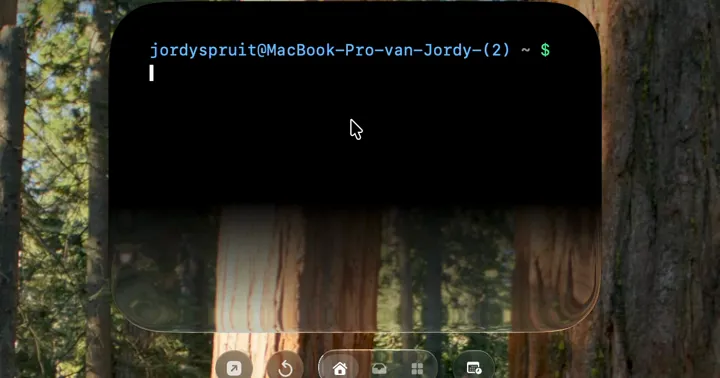
Termi-Notch provides quick shell commands in the notch. It fits developers and technical users who need a small command surface during another task. It is not meant to replace a full terminal window for long sessions, panes, or complex output.
File tools
PDF Compress reduces PDF size while aiming to keep documents sharp. Video Target Size compresses a video toward an exact file size, which is useful when an upload form or message has a hard limit. These tools answer concrete delivery constraints, not vague "optimize" buttons.
Finder Services sends files from Finder's right-click menu into Droppy actions. It is a bridge for moments when the file is already selected and a context menu is faster than dragging it to the Shelf.
Droppy Cloud turns selected files into a private share link. It is intentionally separate from ordinary local file handling. Using the Shelf or Basket does not upload files. Cloud sharing begins only when you choose that action. Current Droppy Cloud links expire after 3 days, and recipients can preview or download without an account.
Compression and cloud sharing are final-delivery tools. The original file still needs a normal home and a backup. A Droplet can prepare or send a file, but it should not become the only place an important document exists.
Media tools
Apple Music and Spotify connect playback controls to Droppy's media surfaces. Lyrics adds timed lyrics beside the media widget when they are available. Together they make sense for somebody who listens throughout the day and wants controls at the top rather than another app switch.
They remain optional because not every Mac is a music machine. If you already control playback entirely from a keyboard or headphones and never look at track information, enabling three media Droplets adds choices without saving time.
Three current examples, three clear boundaries
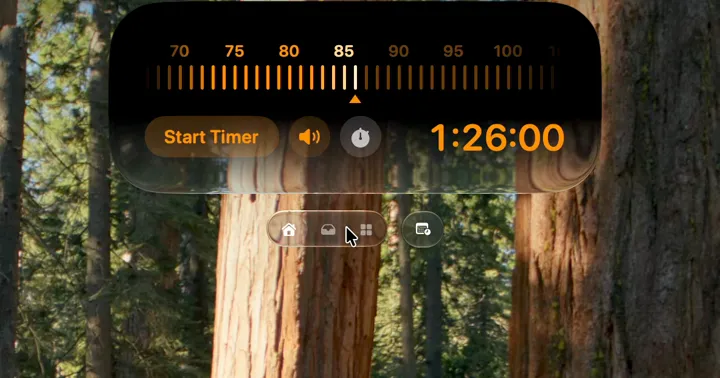
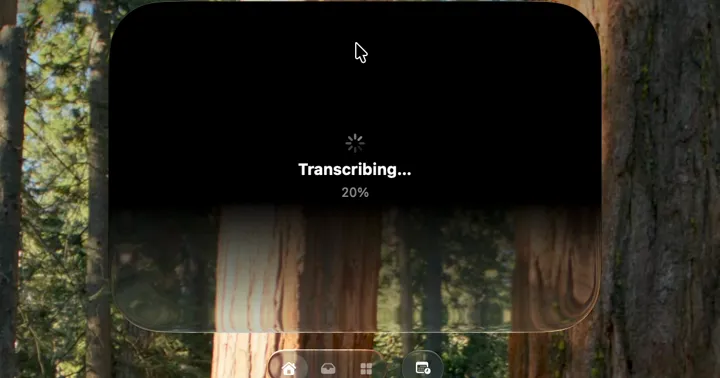
The captures make the extension model easier to judge than a long persona list. Voice Transcribe owns a transcription job and reports 20% progress. Termi-Notch owns a live shell prompt and waits for a command. Pomodoro owns duration selection and shows the exact 1:26:00 value before the timer starts.
None of those surfaces tries to absorb the others. Enabling transcription does not force a terminal into the Shelf. Opening the prompt does not start a timer. Each Droplet has a visible entry point, a bounded action, and a state you can understand at a glance.
That is the practical setup method: choose the one visible job you need now. If spoken audio needs text, enable Voice Transcribe. If a quick command needs a prompt, enable Termi-Notch. If focus needs a duration, enable Pomodoro. Add another Droplet only when another repeated action earns its own place.
One tool, several surfaces
Droplets can appear where their job makes sense: as a Shelf widget, a compact live activity near the notch, a dedicated popover or window, a Finder action, or a lock-screen element when the feature belongs there. They share Droppy's visual language, but they do not all need the same container.
A timer benefits from persistent compact progress. A clipboard needs room to browse. A window snap action may need no persistent interface at all. A file compression task needs progress and a result. Designing around the job is better than forcing every feature into one grid of tiny buttons.
The honest fit
Droplets make the most sense if you want several small Mac tools to share one app and one top-of-screen home. They reduce the number of separate utilities, icons, and interaction styles you have to manage.
If you need the deepest version of one specialist tool, choose the specialist. A full terminal, professional transcription suite, advanced window manager, or production video compressor will go further than a focused Droplet. Droppy's goal is to cover the frequent action cleanly, not to pretend a compact utility can replace every dedicated app.
The design test is whether Droppy still feels like your app after you configure it. Start with the core. Add the Droplets that solve a problem you can point to. Leave the rest off, even if I spent a lot of time making them.