


A note is most useful when the distance between having the thought and writing it down is almost nothing. Opening a full notes app is reasonable for a document. It feels heavy for a phone number, a sentence to revisit, or the three things I need before I leave the desk.
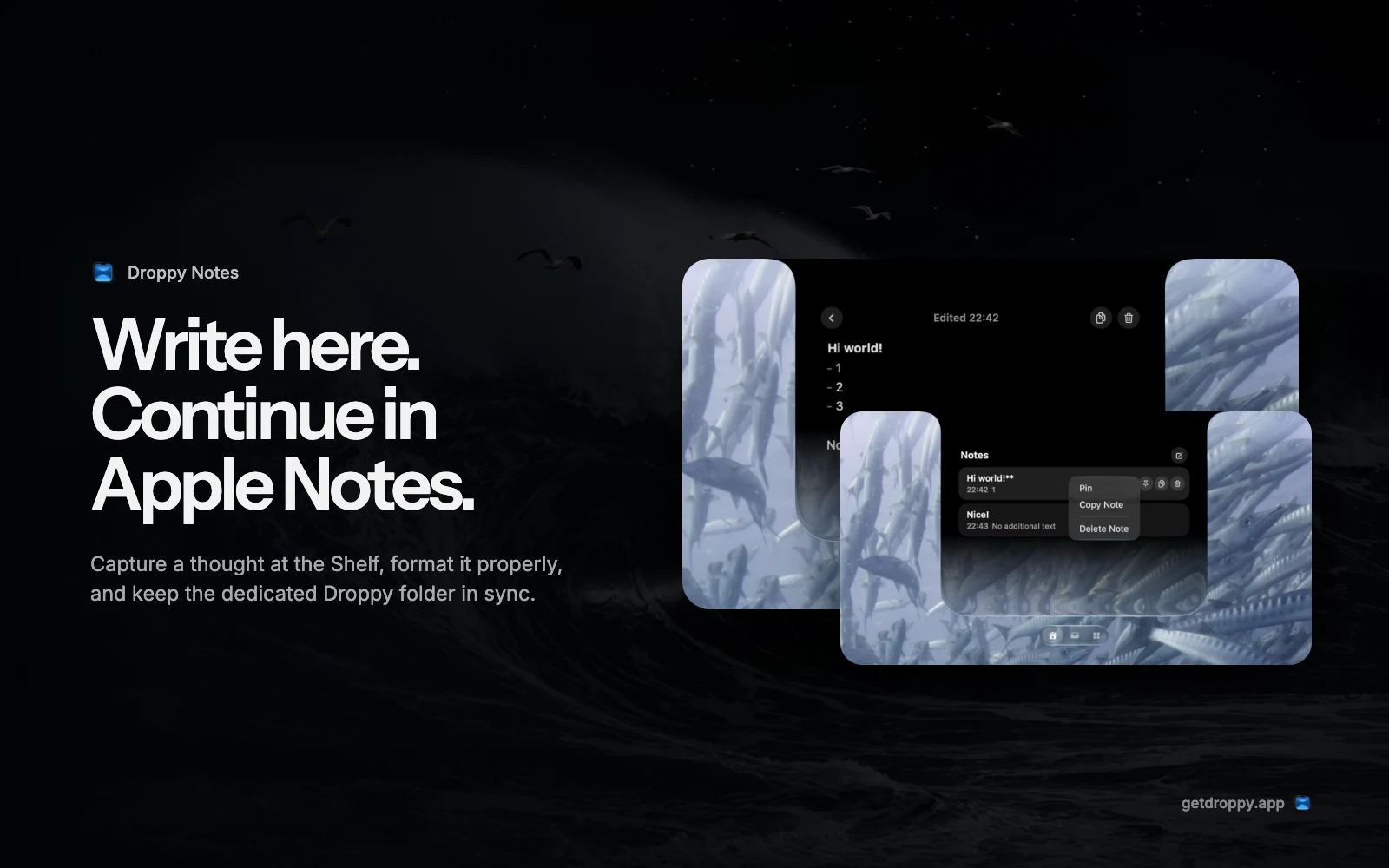
Capture a thought without leaving the Shelf
Notes is a Shelf widget. Open the Shelf, choose Notes, and start a new note from the list. The editor takes over that widget area rather than opening a separate app window. When you return to the list, the first useful line becomes the title and the next non-empty line becomes the preview, so there is no second title field to maintain.
The note autosaves after a short pause in typing. Closing the Shelf does not throw away the open note, and the editor remembers the caret position so reopening it does not always send you back to the beginning. A completely blank note is different: if you close its editor without adding content, Droppy discards the empty draft instead of filling the list with untitled placeholders.
This is part of the larger Shelf idea. A note can live beside files, music, timers, and the other widgets you actually use, but it still has one focused job. It is there when a thought needs somewhere to land.
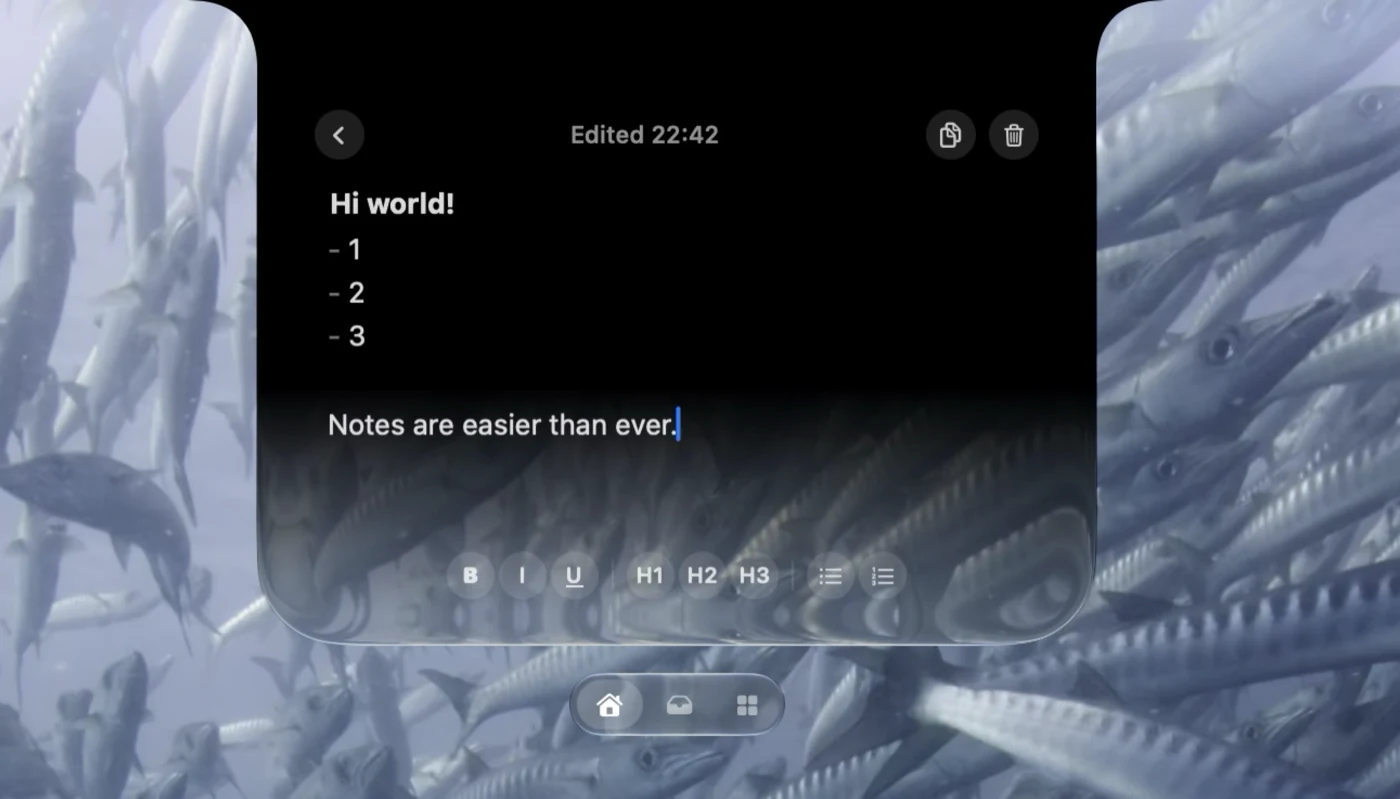
Formatting looks like the result, not the markup
The editor stores a compact text representation, but it does not make you stare at formatting markers. Headings render at heading sizes. Bold and italic text look emphasized. Lists draw their markers, checklists draw boxes you can click, quotes get a visible rail, and pipe-based tables become a real grid with editable cells.
The visible toolbar prioritizes bold, italic, underline, highlight, three heading levels, bulleted lists, numbered lists, checklists, and tables. The renderer also understands strikethrough and quote structure. The important distinction is that this is WYSIWYG editing: the syntax stays out of the way while the formatted result remains editable in place.
| Structure | What you see in Droppy | Apple Notes sync boundary |
|---|---|---|
| Headings and emphasis | Scaled headings plus bold, italic, underline, highlight, and strikethrough rendering. | Common emphasis maps across, but highlight is not preserved by Apple Notes. |
| Lists and checklists | Visible list markers and clickable checklist boxes instead of exposed syntax. | Regular lists and checklists have explicit conversion in both directions. |
| Quotes | A restrained vertical quote bar in the editor. | The text can travel, but it does not become Apple Notes' native quote style. |
| Tables | A fitted grid whose cells are edited directly. | Simple supported tables map across; rich or nested Apple tables are protected from destructive replacement. |
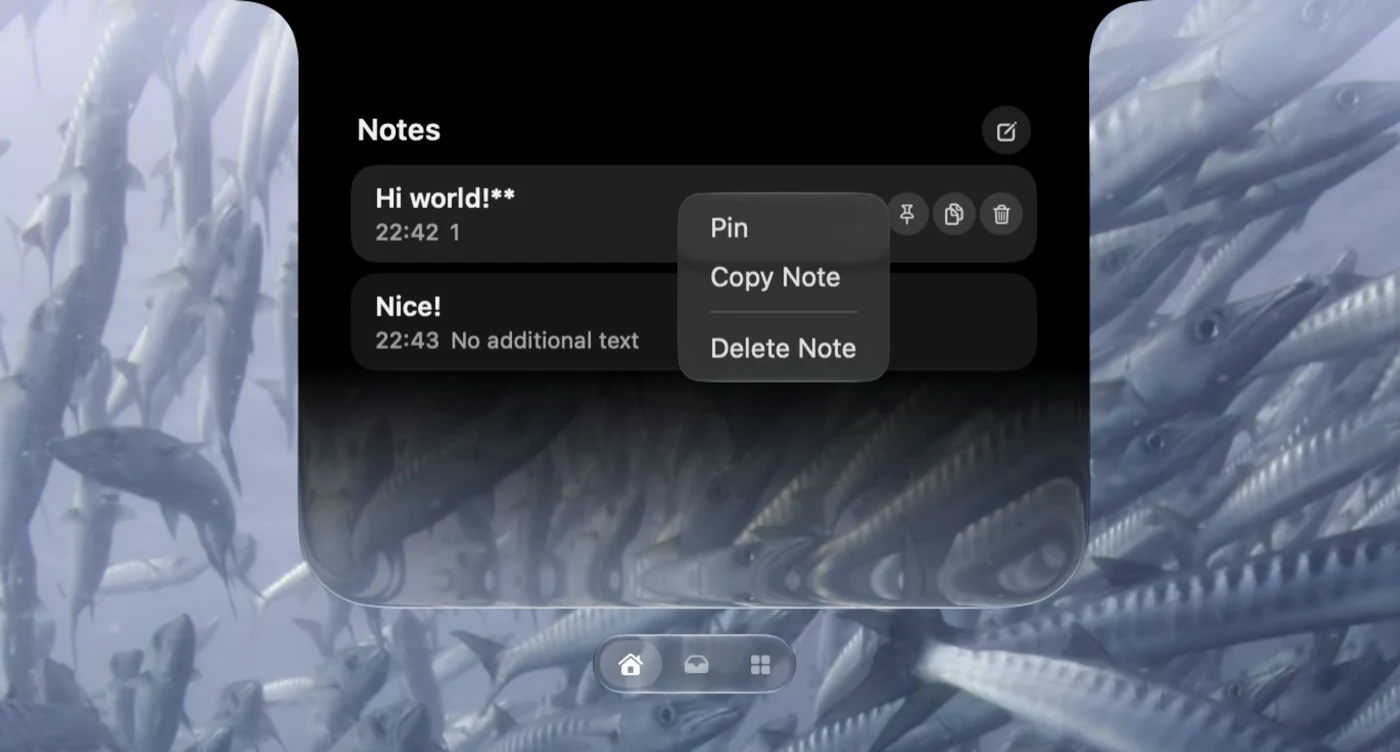
Pin, copy, reorder, or delete from the list
A quick capture system only stays useful if retrieval is equally quick. Hover a note row to reveal pin, copy, and delete controls. The context menu exposes the same actions and can assign a global shortcut to open that specific note from elsewhere on the Mac.
Pinned notes form a group at the top. Everything else keeps the order you choose. Drag a note over another row to reorder it; crossing into the pinned group changes its pin state to match that group. This is manual order, not an automatic last-edited sort that keeps moving the list while you work.
Copy Note places the note's underlying text on the clipboard. That keeps the structure portable when you paste into an editor that understands it. Delete is immediate in Droppy, so use it as an intentional action rather than a cleanup button with a confirmation step waiting behind it.
How Apple Notes sync is scoped
Apple Notes sync is optional. Turn on Sync with Apple Notes in the Notes settings and Droppy creates or uses a folder named Droppy inside the Apple Notes account named iCloud. That account choice is strict. Droppy does not silently fall back to an On My Mac account, because a local folder could look successfully synced while never reaching your iPhone or iPad.
Only notes inside that dedicated folder participate. Droppy does not read the rest of your Apple Notes library, mirror unrelated folders, or treat a deletion elsewhere in Notes as a Droppy deletion. On an iPhone or iPad, a note must be in the Droppy folder to appear back at the Shelf.
The first user-initiated sync may open Notes and macOS may ask whether Droppy can control it. That Automation permission is required because Apple does not provide a public Notes sync API for this job. If access is denied, the settings surface reports that access is needed and points to System Settings, Privacy & Security, Automation. Sync is not active merely because Notes exists on the Mac.
- Dedicated scope
- Only the Droppy folder inside the iCloud account is fetched and changed.
- Two-way changes
- Supported edits from either side are reconciled per note, with the latest edit winning.
- Cross-device continuation
- Apple Notes carries the folder through iCloud to devices signed into the same account.
- Permission boundary
- Droppy needs macOS Automation access to Apple Notes before the sync path can run.
Press Sync to watch one note travel from the Droppy folder through iCloud to Apple Notes on iPhone. Nothing outside that folder is touched.
What happens when both sides change
Each linked note remembers the last known content on both sides. When Droppy sees a real change, it pushes or pulls that note rather than rewriting the whole folder. If both copies change, the more recent edit wins. A small grace period favors the local note while you are actively editing it, and remote content is not applied in the middle of an open edit.
Sync checks more often while the Notes widget is visible and less often in the background. Background checks also avoid launching Apple Notes when it is closed. If you are waiting for an iPhone edit, the Sync status control can request a foreground refresh and may open Notes.
Deletion has safety rails
Deleting a normal supported synced note can remove its twin from the other side. Apple-side absence must be confirmed across more than one valid fetch before Droppy removes the local copy, which protects against a brief iCloud omission looking like a real deletion.
Droppy is deliberately more cautious when an Apple note contains material it cannot represent. Images, attachments, custom fonts or colors, manual links, and richer table structures are preservation boundaries. Droppy refuses to overwrite or delete that Apple note just to make the simpler Shelf copy match. If you truly want it gone, delete it directly in Apple Notes.
For a supported note deleted through the sync path, Apple Notes provides its Recently Deleted recovery area. Droppy's Notes settings describes that recovery window as 30 days. The local Droppy list does not have its own trash, which is why the Apple-side recovery path matters only after sync has actually created a twin.
Use Notes for capture, not for every document
Droppy Notes is at its best for material that benefits from being close: a running checklist, a short reference table, a draft paragraph, or a note tied to what you are doing now. It is not trying to expose every Apple Notes feature inside the Shelf, and it does not ingest your existing library.
If the note grows into a long document with attachments, links, scans, or collaboration, continue in Apple Notes and respect the format boundary. If it stays a small working note, keep it at the top. The broader guide to what the MacBook notch can do shows how Notes fits alongside the other small surfaces without making the whole Shelf about one tool.