


Apple Music is easy to start and surprisingly awkward to manage once its window disappears behind your work. Media keys cover the basics, but they do not show what is next, whether Shuffle or Repeat is active, where audio is playing, or whether the current release has live artwork.
Droppy brings those controls to the media card at the top of your Mac. You can scrub through the current song, move between tracks, open the Playing Next queue, choose an AirPlay receiver, follow lyrics, and keep the same controls available on the Lock Screen.
There is one clear boundary: the queue and Apple Music-specific controls require Apple Music to be the active media source. Browser audio and Spotify still use Droppy's regular media controls, but Apple Music features do not pretend to control another player.
See what is Playing Next
The Queue button opens a Playing Next panel beside the expanded media card. It shows upcoming songs in order with artwork, title, and artist, so checking what follows does not mean bringing Music to the front.
Each row has two useful actions. Play Now jumps directly to that song. Play Next moves it ahead of the natural order so it follows the current track. Songs promoted this way stay at the top of the panel in the order you chose.
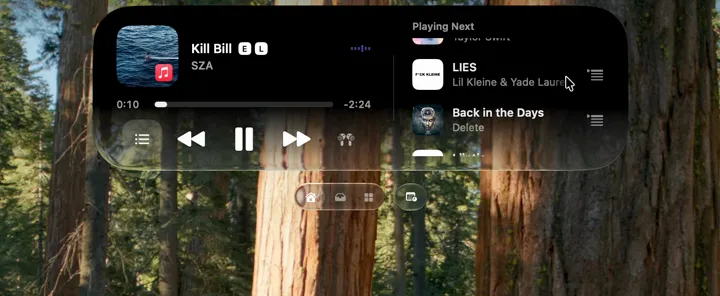
The queue reflects Music's current playback context. Playlists and albums expose their upcoming order, while hand-queued songs and other catalog playback can use the queue supplied by the system media session. In both cases, Droppy keeps the action in the media card instead of asking you to rebuild the queue elsewhere.
Put the controls you use on the card
The two side buttons on the expanded media card can be configured independently. The available choices are Queue, Favorite, Shuffle, Repeat, and Source. Queue opens Playing Next. Favorite updates the current Apple Music track. Shuffle and Repeat reflect their current Music states. Source opens the output picker.
This makes the card fit the way you listen. If you often build queues, keep Queue close. If the Mac normally sends music to a HomePod, put Source on one side. If you listen through albums, Repeat and Favorite may be more useful than Shuffle.
The selected states are visible rather than hidden behind a menu. Favorite, Shuffle, and Repeat use the same filled treatment as an open Playing Next control, so it is clear when one is active.
The full transport stays in reach
The center of the card handles the frequent actions: previous track, play or pause, next track, and a progress bar you can scrub. Track title and artist remain visible, along with the current time and remaining time.
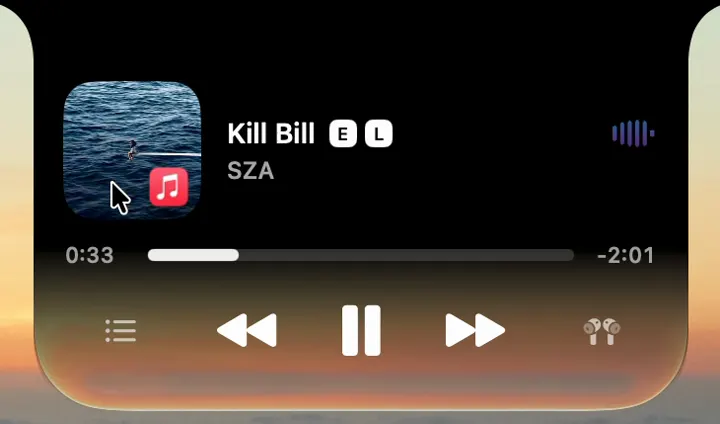
An optional audio quality badge adds the format beneath the artist. Lossless and Dolby Atmos appear when Apple Music reports them for the current track. The badge is informational, so the rest of the player stays the same when no supported format is reported.
The Queue button opens Playing Next beside the media card, listing upcoming songs in order with artwork, title, and artist.
The two side buttons are each set independently, so the card holds the Apple Music actions you reach for most.
Source combines the Mac's local outputs with Music's AirPlay receivers, routing playback without opening Control Center.
The same player carries onto the Lock Screen, keeping track info, progress, transport, and your configured buttons while the Mac is locked.
Each control lives in the same media card at the top of the Mac, shown only when you need it.
Send Apple Music to the right room
Source combines the Mac's local audio outputs with the AirPlay receivers exposed by Music. That includes devices such as Apple TV, HomePod, and AirPort Express. Choosing one routes Apple Music without opening Control Center or searching through the Music window.
The picker also avoids showing the same physical device twice when it appears as both a Bluetooth output and an AirPlay target. The current receiver gets a checkmark, and switching back to a local output brings Music back to the Mac.
Live album artwork comes from Apple
With Live Album Artwork enabled, Droppy can replace the static cover with the animated editorial artwork attached to a release in Apple's catalog. The motion plays inside the media widget and eases in after its first frame is ready.
Live artwork is only available when Apple supplies it for that song or album. Droppy does not generate motion for missing covers. If Apple provides no compatible artwork, or the video cannot play, the current static album cover remains the correct presentation.
Open lyrics without leaving the Shelf
The lyrics control opens synced lyrics alongside the media widget. The current line follows playback while nearby lines stay readable, which works well when the Mac is playing music across the room or the Music window is buried under other apps.
Lyrics depend on a matching timed source. When one is not available, Droppy keeps the player focused on the track instead of showing unrelated words. In a custom Shelf layout, lyrics open beside the media player or take the widget slot immediately to its right.
Carry the same player onto the Lock Screen
The Lock Screen media HUD keeps track information, progress, transport controls, and the configurable Apple Music buttons available while the Mac is locked. Queue and Source can expand above the HUD, one at a time, so their panels do not compete for the same space.
Animated artwork has two Lock Screen presentations. Fullscreen mode lets Apple's motion artwork fill the display behind the clock and media HUD. Turn Fullscreen Animated Artwork off and the animation plays inline at the regular artwork size instead.

Lyrics can join that expanded presentation as a timed column. With inline artwork, the cover stays beside the lyrics. With fullscreen motion artwork active, the full-bleed video becomes the visual backdrop while the lyric column remains readable.
macOS still owns the lock
Droppy adds media controls around the Lock Screen, but it does not replace or bypass it. Passwords, Touch ID, user switching, and the decision to unlock remain entirely with macOS. Controlling a song does not grant access to the desktop, documents, or apps.
That separation is deliberate. Apple Music can stay useful from across the room while the Mac's authentication boundary stays exactly where it belongs.
A music setup that stays out of the way
The useful part is not having every control visible at once. It is choosing the two Apple Music actions you reach for, opening Playing Next only when the order matters, and letting the artwork or lyrics expand only when listening becomes the main activity.
For everyday work, the compact card handles transport. When you want more, the queue, output picker, live artwork, lyrics, and Lock Screen player are already at the top of the Mac.