


Downloads is a landing zone, not a filing system. It works when a new file is easy to spot and its next action is obvious. It becomes frustrating when old installers, renamed duplicates, receipts, exports, and temporary attachments all look equally current.
Start with a view that reveals what arrived
List view is the most useful default for Downloads because filenames, dates, kinds, and sizes can share one scan. Open Downloads in Finder and choose List from the View controls. If Date Added is not visible, open View Options and enable that column, then sort by it with the newest items first.
Date Added answers the practical question: what just landed here? Date Modified can be misleading because a document might have been edited months before you downloaded it. Date Created belongs to the source file and can be older still. Those dates remain useful for investigation, but Date Added is the clearest everyday order for this particular folder.
Finder remembers view and sorting choices for folders, so this is a small setup rather than a ritual to repeat every morning. Apple's guide to sorting and arranging items in Finder explains the available properties and the difference between sorting and grouping.
Treat Downloads as an inbox with exits
The folder stays calm when each file eventually leaves for one of three reasons. It moves to a permanent home, it is used and deleted, or it stays briefly because an action is still pending. The mistake is treating Downloads itself as the permanent home for all three categories.
A tax document belongs with financial records. A project asset belongs in the project. A photo you want to keep belongs in Photos or the relevant image library. An application belongs in Applications after installation. Moving durable files to durable homes makes Finder search more meaningful and lets Downloads return to its job as a queue.
You do not need a miniature filing cabinet inside Downloads. A few action folders can help when the inbox is busy, but they should describe what happens next rather than duplicate your whole home folder. Names such as File Away, Send, and Review Later are understandable at a glance. When Review Later becomes permanent storage, the folder has stopped solving the problem.
| What arrived | Best next action | Long term location |
|---|---|---|
| A document you must retain | Rename it clearly and move it now | The project or records folder where related material lives |
| An attachment for a reply | Keep it visible until sent | Delete it afterward unless it also belongs to your records |
| An installer or disk image | Install, launch, and verify the app | Applications for the app, Trash for the finished installer |
| An archive | Inspect the expanded contents | Keep either the archive or the useful contents according to the real need |
Give each file an exit and watch the inbox empty. Sort by Date Added to keep the newest arrivals in reach.
Use folders for destination and tags for status
A folder says where something belongs. A tag is better at saying what is happening to it. A file can stay in Downloads while carrying a Needs reply, Waiting, or Keep tag, then lose that tag when the action is complete. Because one item can have several tags, status does not need to become a maze of nested directories.
Keep the tag vocabulary small. If two tags mean almost the same thing, choosing between them adds work without making retrieval better. Apply a tag from the Finder toolbar or the file's shortcut menu, then search or filter for that tag when you are ready to handle the batch.
Tags also work across folders and iCloud locations. That makes them useful for one status that spans Downloads, Desktop, and a project folder. Apple covers assigning, renaming, and searching them in its guide to using tags to organize files.
- Folder
- A real storage location. Moving a file into it changes where the file lives.
- Tag
- Metadata attached to a file. It can describe temporary status without changing location.
- Smart Folder
- A saved, updating search view. It gathers matches without moving the source files.
- Dock stack
- A quick presentation of a folder's contents. It changes access, not organization.
Smart Folders are views, not containers
A Smart Folder can show every PDF added recently, every disk image still in Downloads, or every file with a particular tag. The results update as files begin or stop matching. This is useful for review because the query can stay while the underlying set changes.
Create one from File, New Smart Folder in Finder. Set the search scope to Downloads, add a criterion such as Kind, tag, or a date property, then save it. The saved Smart Folder can appear in the Finder sidebar. Opening it later runs the same view without requiring you to rebuild the search.
The important boundary is that nothing is moved into the Smart Folder. A PDF shown there might still live in Downloads, Documents, or another selected search scope. Deleting or moving the result acts on the real file. Apple's guide describes Smart Folders as automatically updating collections based on search criteria.
A saved view for old disk images is more useful than an automation that deletes them without inspection. It brings the likely cleanup candidates together while leaving the decision visible. If a criterion produces too much noise, refine the view rather than adding another permanent directory.
Review installers and archives without guessing
Disk images and package installers are common large leftovers. Before deleting one, confirm the application was copied to Applications when required, eject the mounted image, and launch the installed app. Some small apps can run directly from a disk image, which means deleting the image before copying the app can remove the only copy you actually have.
For a ZIP or other archive, check whether the useful files were expanded and whether the archive itself has continuing value. A one-time download can usually go after verification. An archive that is the original delivery, a signed release, or a recovery copy may deserve a permanent records location instead of Trash.
Sort by Kind or search for disk images, packages, and archives during review. Then inspect names and dates rather than selecting everything with the same extension. A safe cleanup is a series of informed decisions. It is not a clever command that assumes every old file is disposable.
Give Downloads a short review rhythm
A small routine beats an ambitious reorganization. Keep the newest items at the top during the week. When the folder starts to obscure what just arrived, move durable files to their homes, finish or tag pending actions, verify installers, inspect archives, and empty obvious temporary copies.
How often this happens depends on volume. Someone downloading a few attachments can review monthly. Design, development, and support work can fill the folder in days. The useful trigger is visual friction: when finding today's download requires search, the inbox is asking for a pass.
Renaming matters during that pass. Replace opaque server names with words you will recognize later, but keep meaningful dates, versions, and extensions. The best filename describes the item without requiring its surrounding browser tab or email subject for context.
Make the Dock shortcut match your review style
Downloads normally lives at the right side of the Dock. Control-click its Dock icon to choose how items are sorted and whether they appear as a folder or a stack. Date Added keeps the newest item easy to reach. Fan, grid, and list presentations suit different amounts of content.
This shortcut is not a cleanup system. It is a quick view into the same folder. A stack full of old items remains a full folder. Configure it for access, then keep using Finder for selection, tags, columns, and careful review. Apple explains the choices in its guide to folders and stacks in the Dock.
Use a temporary staging surface for files still in motion
Sometimes a file does not need a permanent folder yet. It needs to survive the trip between a browser, a message, and an upload form. A temporary staging surface can keep that active set apart from Downloads without pretending it has already been filed.
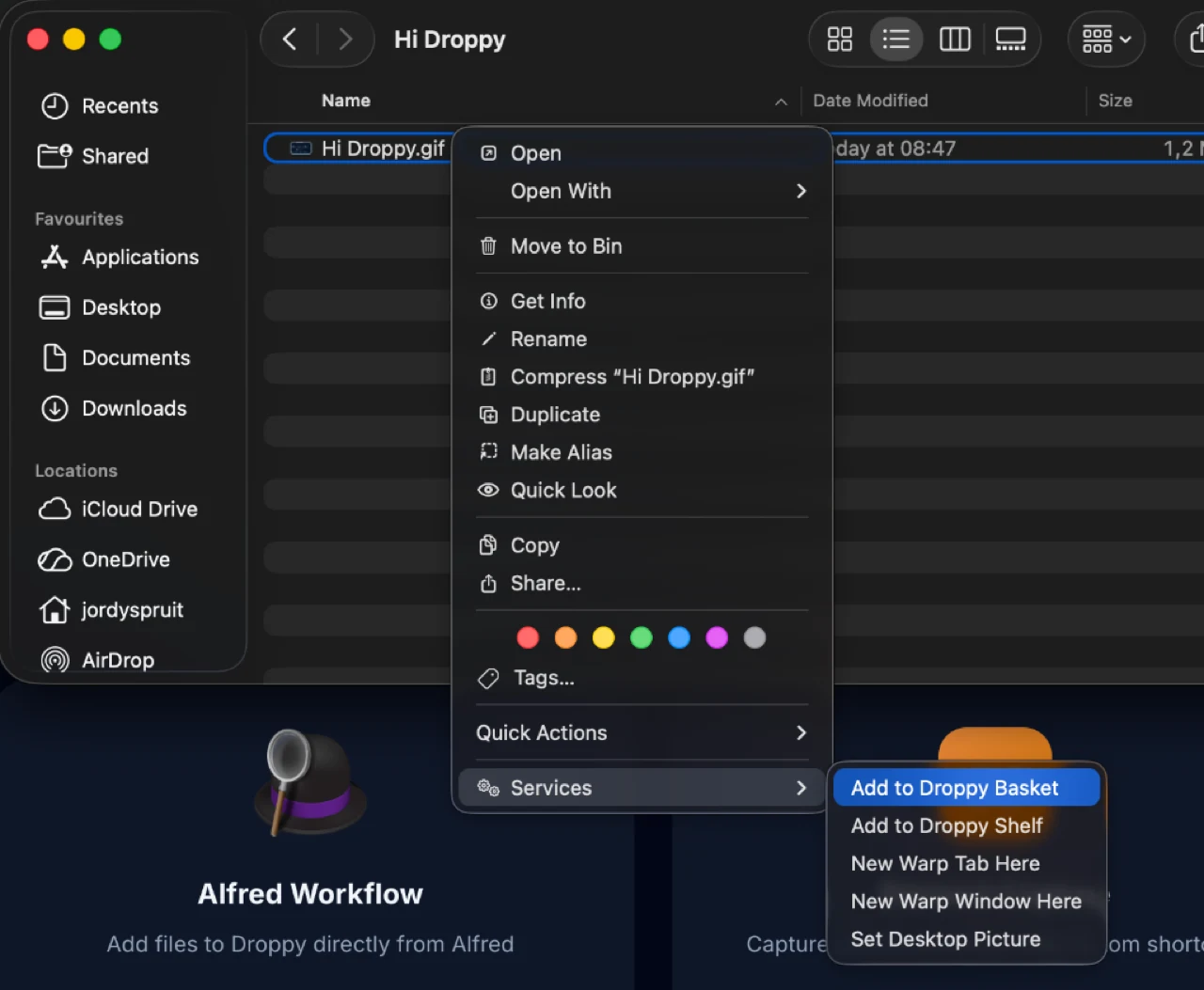
Droppy's Basket is one optional example. A Finder selection can be sent to the Basket, or files can be collected there while you work. That makes sense for items waiting to be attached, compared, converted, or moved together. It does not replace the project folder and it should not become a second Downloads archive.
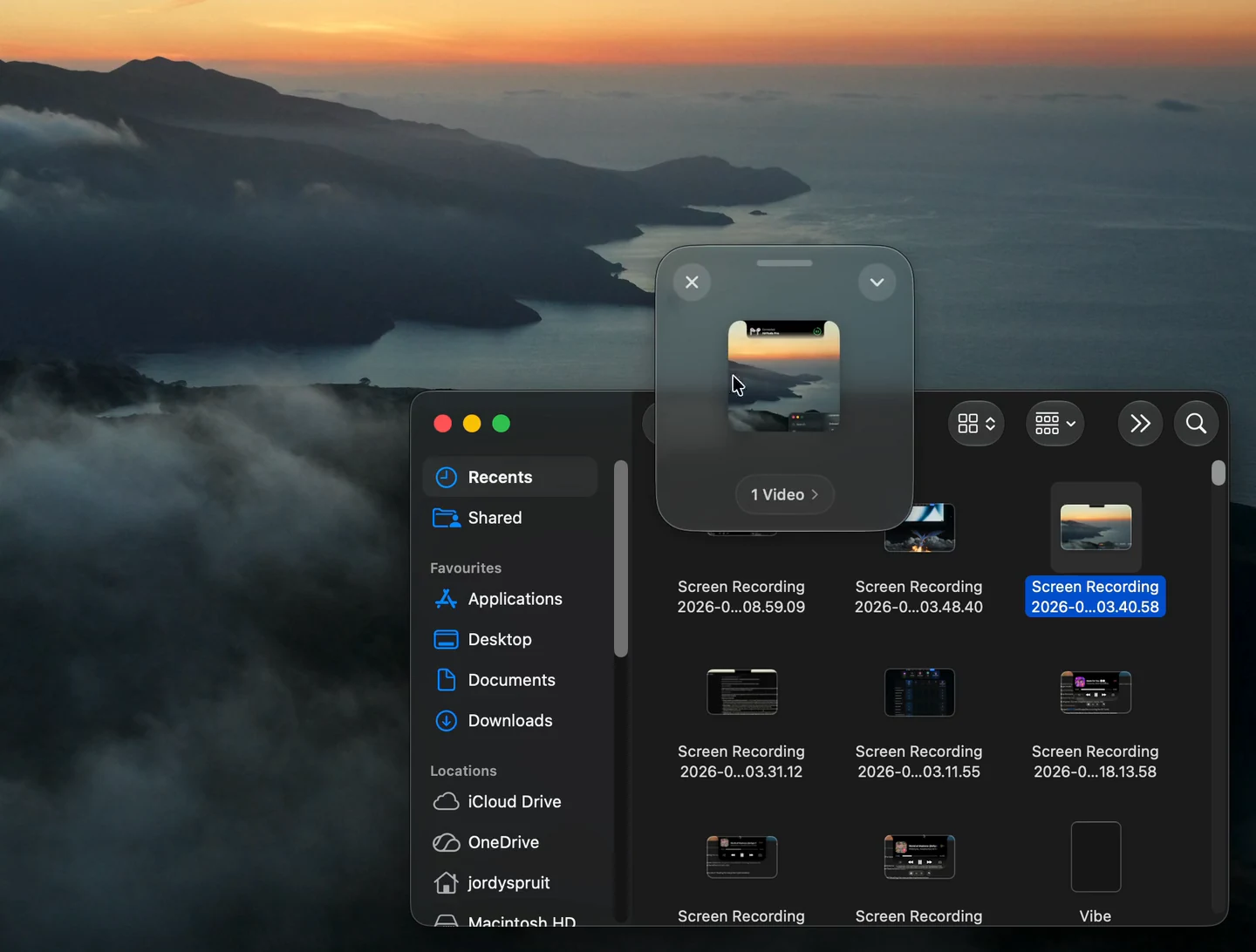
The same principle works without Droppy. A temporary folder for the current task can help, provided it is emptied when the task ends. The value is separating files in motion from files awaiting a permanent decision. The guide to using a floating file basket on Mac covers that staged workflow in more detail.
A calmer folder has a clear boundary
The goal is not an empty Downloads folder at all times. It is a readable one. New arrivals should be obvious, pending files should explain their status, and permanent material should move to a place where you would naturally look for it later.
Start with List view and Date Added. Add only the action folders and tags you will actually use. Let Smart Folders surface review candidates without mistaking them for storage. Verify before deleting installers or archives. Once those boundaries are in place, cleanup becomes a short maintenance pass rather than a rescue project.