


Plug a good external mouse into a Mac and the first thing you notice is not the pointer. It is the scrolling. The trackpad you were using a minute ago moved the page with your fingers, and the wheel moves it in jumps. Nothing is broken, and the mouse is not cheap junk. The two devices are simply sending macOS different kinds of input.
Why the wheel feels steppy
A classic mouse wheel has detents. Each click is one event, and the event says move by a number of lines, not by a number of pixels. The app receiving it decides how tall a line is, does the arithmetic, and jumps there. Roll the wheel quickly and you get a sequence of jumps in quick succession, which reads as speed, but never as motion.
A trackpad reports something else entirely. Your fingers produce a stream of small pixel deltas at a high rate, and the stream carries phase information: the gesture began, the gesture is continuing, your fingers left the surface and this is now inertia. Apps use that phase to bounce at the top of a list and to decide when a fling has ended. The motion looks continuous because it genuinely is a fine grained series of small steps rather than a few large ones.
Both are correct behaviour. The gap is not a macOS bug and it is not something a driver update fixes, because the difference is in the shape of the input, not in its handling. It is also why the same mouse feels equally steppy in almost every app: they are all receiving the same ticks.
Modern high end mice muddy this a little. Some send continuous deltas rather than detented ticks, which is closer to a trackpad, and a few switch between the two when you unlock the wheel. That helps, but the phase information a trackpad provides is still missing, so bouncing and inertia stay absent.
What System Settings can and cannot fix
Two settings are worth checking before installing anything. In System Settings, Mouse, the scrolling direction control decides whether content follows your fingers or the old wheel convention. It is a single system wide choice shared with the trackpad, which is the reason so many people who use both devices end up unhappy with whichever setting they picked.
The same panel has pointer speed, and Accessibility has a separate pointer control section with scrolling options including a scroll speed slider. Those are worth a pass, because a mouse that feels wrong sometimes just needs a different tracking curve rather than a scroll fix.
What none of them do is change the shape of the event. There is no macOS setting that converts a line tick into an animated pixel run, and there is no per device scroll direction. Once you have set direction and speed, System Settings has said everything it has to say about a wheel.
Response, speed, acceleration, inertia
A smoothing layer sits between the mouse and the app. It intercepts each tick, works out how far the page should end up moving, and then delivers that distance as many small pixel events over the next fraction of a second instead of one jump. Done well the result is indistinguishable from a fine grained scroll. Done badly it is a laggy mouse.
Four properties decide which one you get. Response is how quickly the layer reacts to a tick you just made. Speed is how far a single tick travels once the arithmetic is done. Acceleration is how much a fast series of ticks compounds, which is what makes a long document reachable without spinning the wheel forever. Inertia is how long the motion carries after you stop.
They interact more than they look like they should. High inertia with low response gives you a mouse that keeps drifting after you have already stopped reading. High acceleration with high speed overshoots every time you flick past a heading. The useful way to tune is one property at a time, on the kind of content you actually scroll, which for most people is a long web page rather than a spreadsheet.
A smoothing layer also has to emit the same gesture phases a trackpad does, or scroll views stop bouncing at their edges and the page feels like it hits a wall. That detail is invisible when it works and immediately obvious when it does not.
Separate vertical and horizontal
Vertical and horizontal scrolling are not the same gesture and they should not share a curve. Vertical is what you do all day, through documents and pages and feeds, and it rewards a longer carry. Horizontal is usually a tilt wheel or a side rocker, used in bursts, on timelines and wide tables and image strips, where a long glide means you overshoot the frame you were looking for.
Tools that expose one global setting force a compromise. In Droppy's LiquidMouse Droplet the axis is a choice you make first: a Direction control switches the whole panel between Vertical and Horizontal, and every value under it, the motion curve and all four sliders and the reverse toggle, is stored separately for that axis. You tune vertical for reading and horizontal for precision, and neither one drags the other around.

Reverse direction is per axis too, and that is the part macOS itself cannot offer. Because the system setting is shared with the trackpad, flipping the wheel normally flips your fingers as well. A per axis reverse in a mouse only layer means the mouse can go one way while the trackpad keeps doing what it always did.
Where smoothing goes wrong
The first failure is treating a trackpad like a mouse. If the layer smooths everything it touches, the trackpad ends up scrolling through a filter it never needed, and the best input device on the machine gets worse to make the second best one better. Telling them apart is not a matter of reading the event, because a continuous mouse and a trackpad produce identical fields. It has to be resolved from the physical device behind the event, which LiquidMouse does before deciding whether to touch anything at all.
The second failure is momentum that survives the app it started in. Fling a long list, switch windows immediately, and the tail of that gesture lands somewhere it does not belong. The fix is unglamorous: cancel the running gesture whenever the frontmost app changes into something the layer is not handling, and rebuild from scratch rather than carrying state across.
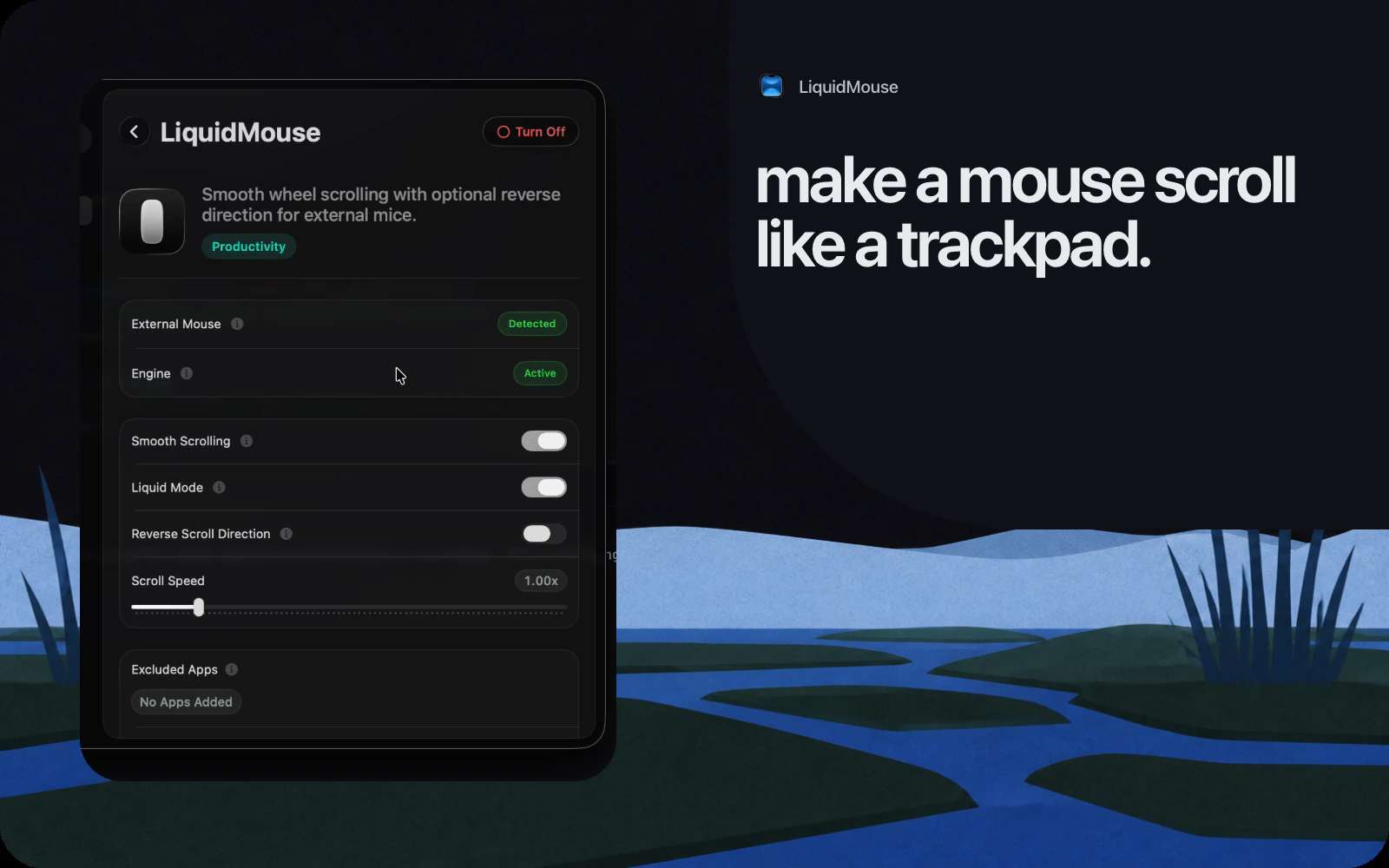
The third is not having an escape hatch. Video editors, 3D tools and games want raw wheel input, and any smoothing at all makes them worse. An exclusion list solves it, and LiquidMouse keeps one so wheel events for those apps bypass the layer entirely.
The fourth is cost. A smoothing engine runs a timer for the whole duration of every gesture, in Droppy's case at 120 Hz, on every tick you make all day. If that work is not cheap you have traded steppy scrolling for a warm laptop. This is the reason the category is full of tools that feel great for a week.
Setting up LiquidMouse
Install it from the Droplets list in Droppy's settings, then grant the input permissions it asks for, since a layer that never sees a scroll event cannot smooth one. The panel tells you plainly whether it currently sees an external mouse and whether the engine is running, which saves a lot of guessing.
Start on Vertical and leave the default curve alone for a day. It is a balanced ease in and out, and it is deliberately unexciting. If it feels slow to start, move toward a curve that picks up faster. If it overshoots, move toward one that settles sooner. Touching any slider switches that axis to a custom curve, and there is a restore control that puts the balanced default back for that axis only.
Then switch the Direction control to Horizontal and do it again, with less carry. Add any app that needs raw input to the exclusion list. That is the whole setup, and it should take about ten minutes, most of which is scrolling a long page and changing your mind.
The goal is not to make a mouse into a trackpad. It is to stop the mouse feeling like a downgrade every time you reach for it. If you are collecting small changes that add up, making your Mac feel fast again and the shortcuts worth memorizing are the two that pay back the fastest, and window management with Mission Control and Spaces is the one people put off longest.